Regulations mandate that advertising for some categories of products includes an energy efficiency label, for example:
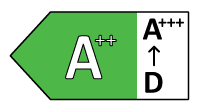
Renable hosts a set of these icons that render the right arrow, scale, and highlighted class automatically once you point them at your product's energy attributes. Here's how to add one to a template:
-
Make sure your product feed contains the 3 energy class attributes described in the Google Merchant feed format.
-
Add an Image element to your template (see Elements).
-
Select it, open Properties → Binding, and press + to create a placeholder.
-
Paste this URL into the placeholder's expression:
https://cdn.renable.com/static/energy-class-icons/Class_Arrows_MAXMIN_CLASS.png
-
Delete MAX from the expression, open the placeholder menu (the down-arrow at the end of the field) and pick
max_energy_efficiency_classfrom the Custom attributes group. The chip reads Attribute: max_energy_efficiency_class. If the attribute isn't listed, choose Use another attribute… and type its name. -
Replace MIN the same way with
min_energy_efficiency_class. -
Replace CLASS the same way with
energy_efficiency_class. -
Each of those energy-class values can contain a + character (e.g. "A+++"), which needs to be URL-encoded. Click each chip, click + Add step (or the Add transform step icon), choose Replace, and set "Search for" to
+and "And replace with" to%2B. -
Add an empty fallback on the placeholder and leave it blank — this prevents a "missing content" warning for products that don't have energy class attributes.
Once set up, the image element automatically renders the correct energy label for every product that has these attributes, and stays empty (no warning) for products that don't.